Download the Procore Co-ordination Issues Plugin for Navisworks®
Objective
To download and install the Procore Co-ordination Issues plugin for use within Autodesk® Navisworks®.
Background
The Procore Co-ordination Issues plugin for Navisworks® allows you to create and manage co-ordination issues directly on your model in Navisworks®. Any issues created from the plugin will be synced with the Co-ordination Issues tool in Procore's application, where you can send the issues to be resolved before construction starts.
Things to Consider
- Required User Permissions:
- 'Read Only' level permissions or higher on the project's Co-ordination Issues tool.
Note: You will need 'Admin' level permissions on the project's Co-ordination Issues tool to associate a model with a project.
- 'Read Only' level permissions or higher on the project's Co-ordination Issues tool.
- Additional Information:
- The following applications are supported:
- Navisworks® Manage (versions 2019-2025)
- Navisworks® Simulate (versions 2019-2025)
- Revit® (versions 2019-2024). See Import Locations Using the Procore Plugin for Revit®.
- The following applications are supported:
Video
Steps
- Click the Download Now link below to download the plugin application to your computer.
Note: You can also download the plugin directly from the Co-ordination Issues tool in Procore by clicking Download Plugin.

- Click the downloaded .exe application file to begin setting up the plugin.
- Click Accept to accept the Terms and Conditions.
- Click Run or Save.
- Click Yes to allow Procore to make changes to your device.
Note: You will need Administrator rights to your computer. - Click Accept to accept the Terms and Conditions for the Procore plugin.
Note: The application should automatically open. If not, look for the 'Procore VDC' application on your computer. - Log in to Procore with your Procore credentials.
- Click Install next to the version you want to download.
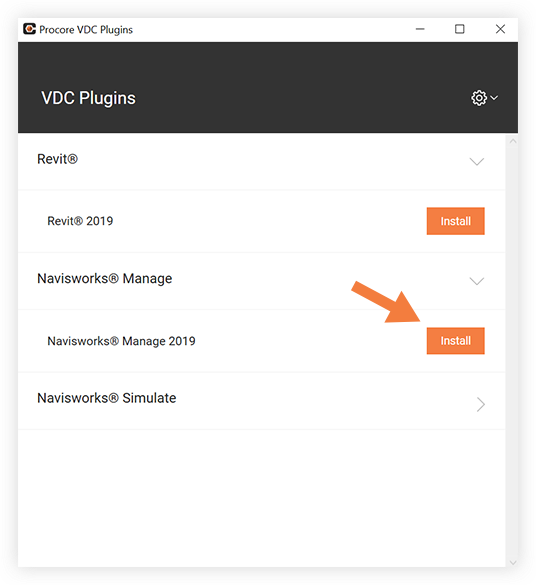
Note: The year of your Navisworks® application and the Procore plugin should be the same.
- Open the Navisworks® application on your computer.
A Procore tab will be viewable in Navisworks®.