Manage Permissions for Team Members in Portfolio Financials
Note
The information in this tutorial applies to accounts with the Portfolio Financials product in Procore. Reach out to your Procore point of contact for more information.Objective
To assign and manage permissions for team members in Portfolio Financials.
Background
The 'Our Team' section in Portfolio Financials is where you can add new users to your team and adjust permissions as needed. To learn about the different permission levels and settings in Portfolio Financials, see What are the different permission levels for team members in Portfolio Financials?
Things to Consider
- Required User Permissions:
- 'Company Admin' in Portfolio Financials.
- Additional Information:
- If you grant a user 'Company Admin' access, they automatically have access to all buildings and projects and cannot be granted additional permissions.
Steps
- Click the more menu (≡) icon in Portfolio Financials and click Our Team.
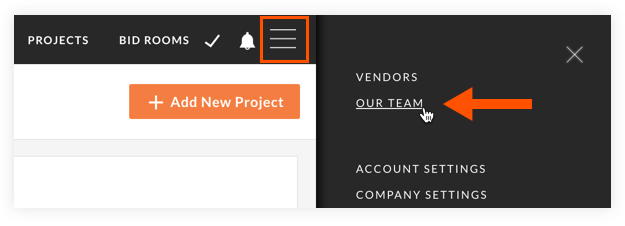
- Choose if you want to manage permissions by members or by buildings:
Manage Permissions from the Members View
- In the 'Members' column, click the name of the user you want to manage permissions for.
- Manage permission settings using the toggles:
- Click the toggle ON
 to enable a permission.
OR - Click the toggle OFF
 to disable a permission.
Note: At an account level, users can be granted 'Company Admin', 'Read Only' (if the Read Only Users feature is enabled for your organisation's account) or 'All Buildings' access. Toggling on access to an individual building (see image below) provides the user with full access to all projects associated with that building.

- Click the toggle ON
- Click Apply Changes to save the changes.
Manage Permissions from the Buildings View
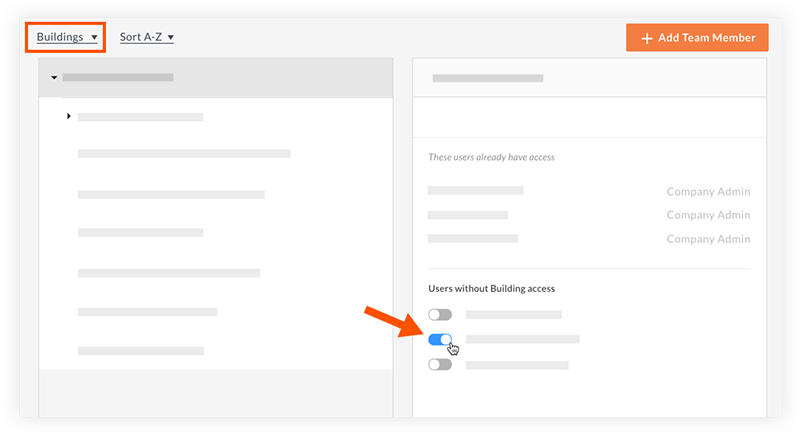
- If not already selected, click the Members drop-down menu and select Buildings.
- Manage permissions using the toggles next to each user's name:
- Click the toggle ON if you want to provide a user with Building Access.
OR
- Click the toggle OFF next to a user to revoke Building Access.
- Click the toggle ON
- Click Apply Changes to save the changes.