

Which Procore fields correspond to fields in DocuSign©?
Answer
There are a few fields in Procore that correspond to fields in DocuSign© and vice versa. Please read the table below to understand which fields are connected.
Field in Procore |
Corresponding Field in DocuSign© |
|---|---|
The Payment application Contact field in the Commitments tool. See Add Payment application Contacts to a Purchase Order or Subcontract. |
Subcontractor role(s) in DocuSign© with their name and email when an payment application is sent in DocuSign©. There is 1 Subcontractor role created for each Payment application Contact
|
The Contract Signer field in the Company Directory. See View Company Details in the Company Level Directory Tool.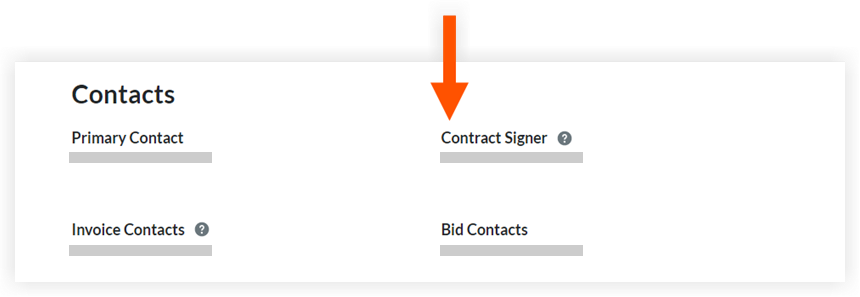 |
|
|
Signed Date field in a Main Contract, Commitment or Variation is populated once the item has completed the DocuSign© process. The following signed dates in Procore are automatically populated:
|
Once a Main Contract, Commitment or Variation has completed the DocuSign© signature process, the Signed Date field is auto-populated in Procore. |
The Status field in a Main Contract, Commitment or Variation (MCV, CV, PV) is updated to approved when the item has completed the DocuSign© process.  |
When a Main Contract, Commitment or Variation (MCV, CV or PV), has completed the DocuSign© process, the status is updated to 'Approved' in Procore. |
The Executed Tickbox is updated to show a mark for the Main Contract, Commitment or Variation once the DocuSign© signature process is completed.  |
When a Main Contract, Commitment or Variation has completed the DocuSign© process, the Executed tickbox is updated to be marked. |


