Create a Client Contract Variation
Limited Release
 The Client Contracts tool is available as a limited release for Procore customers in the United States who have implemented the Procore for Speciality Contractors point-of-view dictionary. To learn more, see What tool names and terms are different in Procore for main contractors, owners and speciality contractors?
Objective
To create a client contract variation in Procore's Client Contracts tool.
Background
Use the steps below when you need to create a client contract variation.
Things to Consider
- Required User Permissions:
- 'Admin' level permissions on the project's Client Contracts tool.
- Additional Information:
- If you are using an account where is the Procore + DocuSign© integration enabled, see DocuSign©.
- If the Change Events tool is active in Project Tools, you must complete the steps in Create a Change Event. Then follow the steps in Create a Client Contract Variation from a Change Event instead of the Steps below.
- For companies using the
 ERP Integrations tool: Show/Hide
- Additional considerations, limitations or requirements apply depending on the ERP system your account is integrated with. See Things to Know about your ERP Integration for details.
Prerequisites
Steps
- Navigate to the project's Client Contracts tool.
- Locate the client contract to work with. Then click its Number link.
- Click Create Client Contract VAR.
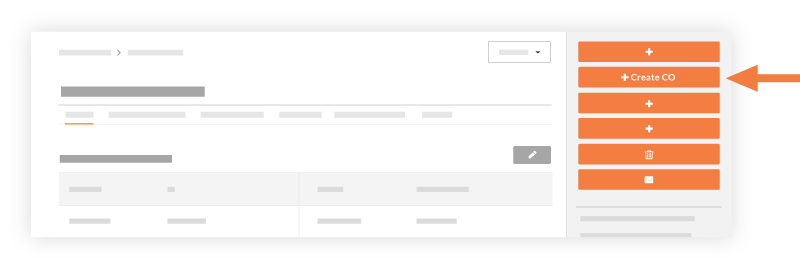
- Complete the following fields:
- Depending on the variation tier settings of the Client Contract's tool, one (1) of these list boxes will appear:
- OR
- Choose one (1) of these options:
- To create the variation, click Create.
OR - To create the variation and send email notifications, click Create & Email.
OR - If you are using the Procore + DocuSign® integration to collect signatures, click Complete with DocuSign. To learn more, see DocuSign®.
- To create the variation, click Create.