

Main Contracts - Reuse
Reuse
Callouts
Release Callout - Owner Payment applications Experience
Release Callout - Legacy Owner Payment applications Experience
Owners/SC Dictionary - US English Only
Limited Release
 If you are a Procore customer in the United States, the name of this tool depends on a dictionary setting in your company's Procore account:
- The Main Contracts tool is Procore's default tool name for the English (United States) dictionary.
- The Funding tool is only available with the Owners point-of-view dictionary.
- The Client Contracts tool is only available with the Speciality Contractors dictionary is active.
To learn about the dictionaries and required Project level and User level dictionary settings, see What tool names and terms are different in Procore for main contractors, owners and speciality contractors?
Beta - Modernised Experience for Main Contracts
In Beta
This content is for participants in the Project Financials: Modernised Experience for Main Contracts beta program.Beta - New Design Contracts Table
In Beta - EARLY ACcESS DESIGN
This content is for participants in the Project Financials: New Contracts List in Commitments & Main Contracts early access design release.
COMING SOon - Budget Code in Financial Markup
Coming Soon
In the future, Procore will add a 'Budget Code' drop-down list in the 'Maps To' section of the 'Add Horizontal Markup' and 'Add Vertical Markup' windows.Note: Budgeted Production Quantities and MCVs
Notes
- For customers using Procore's Resource Tracking and Project Financials tools, production quantities and hours entered on your project's variations automatically updates data in these Procore features, when variations are placed in the 'Approved' status:
- The Procore Labour Productivity Cost budget view. See Set Up the Procore Labour Productivity Cost Budget View.
- The Field Production Report. See Set Up a Field Production Report.
- To learn about the data columns in this report, see Which data columns are in a Field Production Report?
- To learn about the Procore tools that interact with this report, see Which Procore project tools update data in the Field Production Report?
Note: Custom Numbering Scheme On Variations
Notes
- Procore automatically assigns the item a new number in sequential order. For example; 001, 002, 003 and so on.
- To use a custom numbering scheme, enter any set of alphanumeric characters. Procore automatically assigns new numbers in sequential order using your custom scheme.
Note: Revised Substantial Completion Date Setting Enabled
Note
If the substantial completion date is enabled on the 'Configure Settings' page of the tool, Procore updates the variation's 'Revised Substantial Completion Date' field after the variation is placed into the Approved status.Tip: Designated Reviewer on Variations
Tip
Are you the 'Designated Reviewer' on a variation? To learn how to submit an approve or reject response, see Approve or Reject a Variation.
Content
Main Contracts
Main Contract Payment Applications
Open a Payment Application (Invoicing)
To open an owner payment application in the Project level Payment applications tool:
- Navigate to the project's Invoicing tool.
- Click the Owners tab.
- In the table, locate the payment application to edit.
Tips
- Looking for a specific payment application? To quickly find a match in a long list of payment applications, start typing in the Search box. Procore narrows the list to show only the payment applications that match your keywords.
- Want to organise the payment applications in the Owner list? To organise the payment application table, use the options in the Add Group and Add Filter menus. To learn more, see Search, Filter and Group Payment applications.
- Click the Payment application No. link.
Procore opens the payment application. You have different editing options on each card in the payment application.
Open a Payment Application (Main Contracts)
To open an owner payment application in the Project level Main Contracts tool:
- Navigate to the project's Main Contracts tool.
- In the table, locate the payment application to edit.
Tips
- Looking for a specific payment application? To quickly find a match in a long list of payment applications, start typing in the Search box. Procore narrows the list to show only the payment applications that match your keywords.
- Want to organise the payment applications in the Owner list? To organise the payment application table, use the options in the Add Group and Add Filter menus. To learn more, see Search, Filter and Group Payment applications.
- Click the Number link.
Procore opens the payment application. You have different editing options on each card in the payment application.
Open a Payment Application (Progress Billings)
Limited Release
The Progress Billings tool is only available to Procore customers in the United States who have implemented the Procore for Speciality Contractors point-of-view dictionary. To learn more, see (Limited Release) Owners & Speciality Contractors Point-of-View Dictionary Options. To open an owner payment application in the Project level Payment applications tool:
- Navigate to the project's Progress Billings tool.
- In the table, locate the payment application to edit.
Tips
- Looking for a specific payment application? To quickly find a match in a long list of payment applications, start typing in the Search box. Procore narrows the list to show only the payment applications that match your keywords.
- Want to organise the payment applications in the Owner list? To organise the payment application table, use the options in the Add Group and Add Filter menus. To learn more, see Search, Filter and Group Payment applications.
- Click the Number link.
Procore opens the payment application. You have different editing options on each card in the payment application.
Summary Preview
Example
The Summary Preview lets you view the finished layout of your owner payment application.
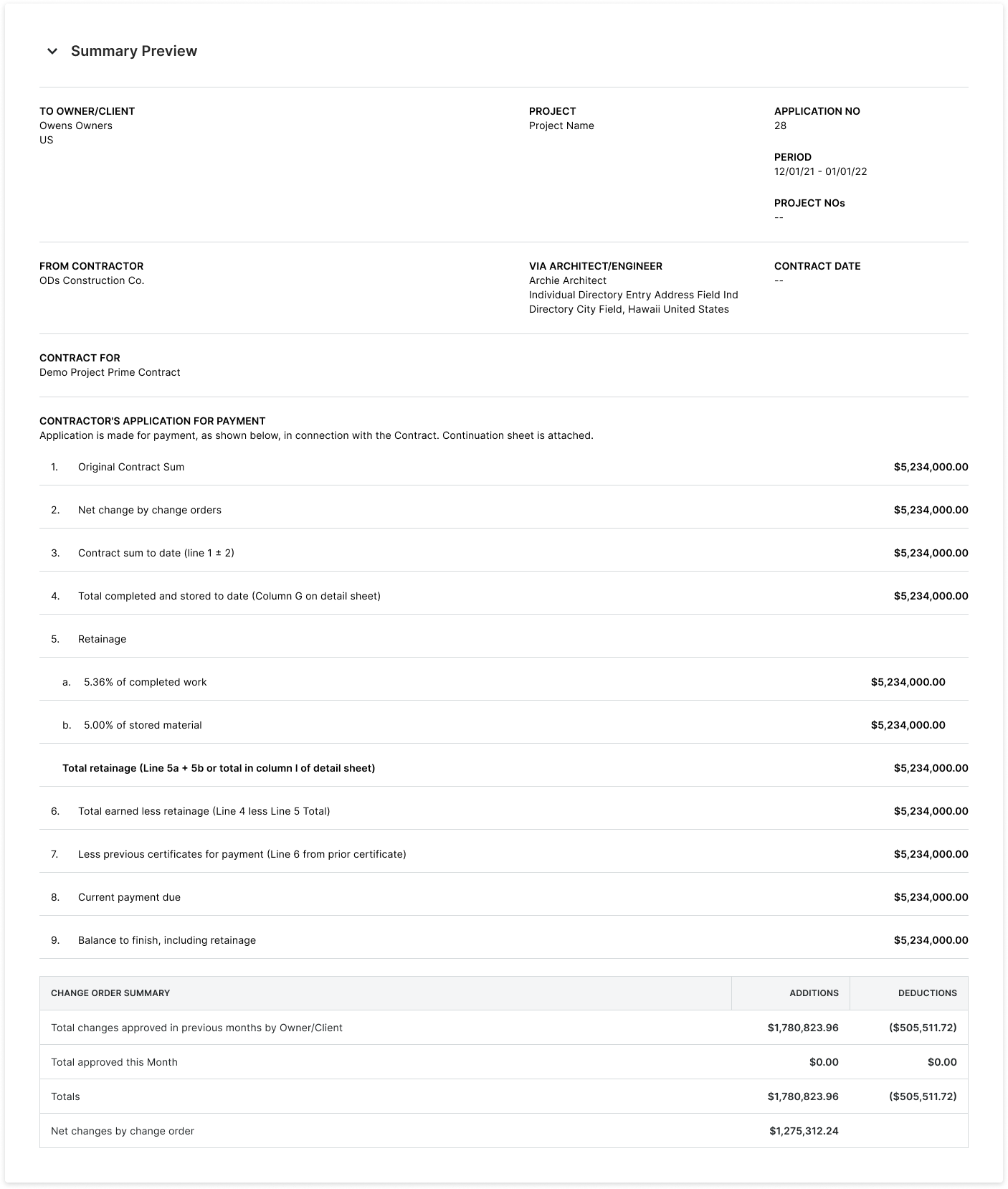
Summary Preview - General Information
The table below details each field in the General Information area of an owner payment application.
| Field | Description | Project Tool | Source Field(s) |
|---|---|---|---|
| To Owner/Client | Shows the name of the Owner/Client as specified in the contract. | Directory, Main Contracts, Client Contracts or Funding | Owner/Client |
| Project | Shows the name of the project as specified in the Project Number field in the Project Information area of the Project Details page. | Portfolio | Project Number |
| Application No. | Shows the payment application number specified on the payment application. | Main Contracts, Payment applications, Progress Billings | Payment application No. |
| Period | Shows the billing period for the payment application. | Payment Applications | Valuation period |
| Project Nos. | |||
| From Contractor | Shows the name of the primary contractor managing the project | Main Contracts, Client Contracts or Funding | Contractor |
| Via Architect/Engineer | Shows the name of the Architect/Engineer as specified on the contract. | Main Contracts, Client Contracts or Funding | Architect/Engineer |
| Contract Date | Shows the effective date of the contract. This is the date the contract went into force. | Main Contracts, Client Contracts or Funding | |
| Contract For | Shows the name of the project as specified in the Project Number field in the Project Information area of the Project Details page. | Main Contracts |
Summary Preview - Contractor's Application for Payment
The table below provides details about each field in the Contractor's Application for Payment area of an owner payment application.
| Line | Field | Description | Project Tool | Source Field(s) |
|---|---|---|---|---|
| 1 | Original Contract Sum | Show the amount recorded in the 'Original Contract Amount' field in the contract. | Main Contracts, Client Contracts, Funding | Original Contract Amount |
| 2 | Net Change by Variations | Shows the total amount of any variations in the Approved status that impact this payment application. | Main Contracts, Client Contracts, Funding, Variations | |
| 3 | Contract Sum to Date (Line 1 ± 2) | Shows the sum or difference of the Original Contract Sum (line 1) combined with the Net Change by Variations amount (line 2). This shows the positive or negative cost resulting from any approved variations. See the Summary Preview - Variation Summary. | Main Contracts, Client Contracts, Funding, Variations | |
| 4 | Total Completed and Stored to Date (Column G on Detail Sheet) | Procore adds the Work Completed values + Materials Presently Stored Shows the cumulative sum of the cost for each line item on the payment application. This represents the work | Payment Applications | |
| 5 | Retention | Shows the percentage of the payment is being withheld until the job is complete. This value is specified in the contract. Typically, the value is between 5% and 10% for each progress payment. Because some regions require variable retention, the 'Retention' amount may only be reduced once a certain percentage of the contract is complete. |
Main Contracts, Client Contracts, Funding | |
| 5a | % of Completed Work | Shows the percentage of work completed from previous payment applications plus the work completed for this billing period. | Main Contracts, Client Contracts, Funding, Payment applications, Progress Billing | |
| 5b | % of Stored Materials | Shows the percentage of materials being stored on-site. This reflects the value of the materials that were purchased for, but not used on, the project up to the end of the payment application's billing period. | Main Contracts, Client Contracts, Funding, Payment applications, Progress Billing | |
| - | Total Retention (Line 5a + 5b or Total in Column I on Detail Sheet) | Shows the variable retention rate. A variable retention rate can represent one of two rates: (1) The amount of retention that is reduced after a certain percentage of work is complete or (2) the amount of retention that retention applies only to labour and NOT to materials. Note: If you are withholding a fixed percentage throughout the entire project, you will not use this field. |
||
| 6 | Total Earned Less Retention (Line 4 less Line 5 Total) | Shows the Work Completed and Materials Stored Amount | ||
| 7 | Less Previous Certifications for Payment (Line 6 from Prior Certificate) | Shows all previous payments for the contract. On the first payment application, this number is zero (0). On subsequent payment applications, the amount matches line 6 on the previous payment application. | Payment Applications | Total Earned Less Retention (from previous payment application) |
| 8 | Current Payment Due | Shows the current payment due for the payment application's billing period. This calculation takes the 'Total Completed and Stored to Date' value in the payment application minus 'Retention' and any completed payments from past payment applications. | Payment Applications | Calculated |
| 9 | Balance to Finish, Including Retention | Shows the amount remaining to be paid on the contract, including the 'Retention' amount. | Payment Applications | Calculated |
Summary Preview - Variation Summary
The table below provides details about each field in the Variation Summary area of an owner payment application.
| Field | Description | Project Tool | Source Field(s) |
|---|---|---|---|
| Total Changes Approved in Previous Months by Owner/Client | Shows the total amount of any variations that were Approved during previous billing periods. | Main Contracts, Client Contracts, Funding, Variations, Payment applications, Progress Billings | Calculated |
| Total Approved this Month | Shows the total amount of any variations that were Approved during the current billing period. | Main Contracts, Client Contracts, Funding, Variations, Payment applications, Progress Billings | Calculated |
| Totals | Shows the total amount of all Approved variations. | Payment Applications | Calculated |
| Net Changes by Variation | Shows the net change to the total amount for this payment application. | Main Contracts, Client Contracts, Funding, Variations | Calculated |
Bulk Editing BOQ Line Items
To edit BOQ line items in bulk:
- Click Edit in the top right corner of the BOQ card.
This places the BOQ into editing mode. - Place ticks in the boxes to the left of each line item. You have these options:
- To select all of the BOQ line items, mark the box in the Item Number column (see 1).
- To select all of the line items in a group, mark the box in a line item group (see 2).
- To select individual line items, mark the desired boxes next to each line item (see 3).
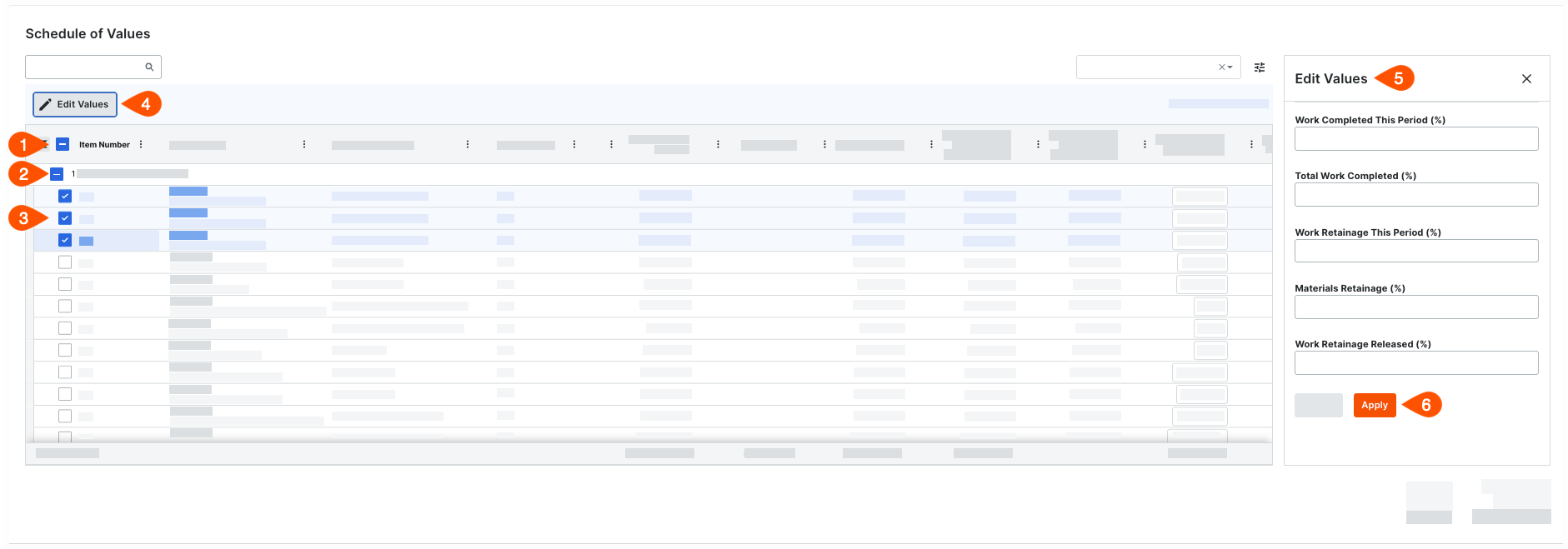
- Click the Edit Values button (see 4).
- In the Edit Values pane on the right (see 5), enter percentage values as needed.
The data entry fields in the Edit Value pane on the payment application's BOQ are different, depending on whether the contract was configured to use the amount-based or unit-based accounting method. To learn more, see How do I set the accounting method for a contract? - Click Apply (see 6).
Inline Editing BOQ LIne Items
Edit line items inline by typing in the text boxes that appear in the editable cells.

Amount-Based Bill of Quantities
To update the line items on an owner payment application's Bill of Quantities (BOQ) when the main contract is using the Amount-Based accounting method:
- Scroll to the Bill of Quantities.
Each line item on an owner payment application's BOQ corresponds to a contract line item. - Click Edit.
This places the Bill of Quantities into edit mode. - Enter values in these fields as needed:
The columns in your BOQ may be different. To show and hide columns, click the Table Settings icon. To learn more, see Manage Table Settings.
- Work Completed This Period (%)
Enter a percentage to represent the monetary value of work completed for this billing period.
Note: If the user who created the payment application marked the 'Populate the Bill of Quantities with Costs from the Selected Billing Period' tickbox, Procore automatically populates the entry in the hidden 'Work Completed This Period (£)' column with values from subcontractor payment applications, direct costs and commitment variations. - Total Work Completed (%)
Enter a percentage to represent the work completed to date through this billing period. Procore uses this entry to display the '% of Completed Work' (line 5a) in the Summary Preview.
Note: This number represents the cumulative amount of work completed from the first payment application on the contract through the current billing period for this payment application. - Work Retention This Period (%)
Enter a percentage to represent the work retention to release this billing period.
Note: An entry in this cell lets Procore automatically calculate the currency value in the 'Work Retention This Period (£)' column of the Bill of Quantities. - Materials Retention (%)
Enter a percentage to represent the material retention for this billing period.
Note: An entry in this cell lets Procore automatically calculate the currency value in the 'Materials Retention This Period (£)' column. - Work Retention Released (%)
Enter a percentage to represent the material retention that you are requesting to be released for work completed this billing period.
- Work Completed This Period (%)
Unit/Quantity-Based Bill of Quantities
To update the line items on an owner payment application's Bill of Quantities when the main contract is using the Unit/Quantity Based accounting method:
- Scroll to the Bill of Quantities.
Each line item in the payment application's Bill of Quantities corresponds to a line item on the payment application's main contract. - Click Edit.
This places the Bill of Quantities into edit mode. - Enter values in these cells as needed:
- Work Completed: This Period (Qty).
Enter a quantity amount to represent the work completed for this billing period. This automatically updates the amount in the 'Work Completed: This Period (%)' cell. - Work Completed: This Period (%).
This cell updates automatically when you enter a value in the 'Work Completed: This Period (Qty)' cell. You can type over this value to change the other entries for this row. - Total Completed & Stored To Date: Total to Date (%).
This updates automatically when you enter a value in the 'Work Completed: This Period (Qty)' or 'Work Completed: This Period (%)' cells. You can type over this value to change the other entries for this row.
- Work Completed: This Period (Qty).